
Consultas Básicas
La siguiente guía muestra cómo aprovechar la función del mapa de Geopulse para encontrar dispositivos.
Debe filtrar la hora de inicio y final para que cualquier consulta sea válida.
A blue point plotted on the map signifies an device event, you can click the event for more information.
Encuentra un Lugar de Interés
To navigate the map to a specific address, search it in the top left. An autocompelete prompt will pop up, once an address is clicked, the map will navigate there.
Buscar por ID de dispositivo
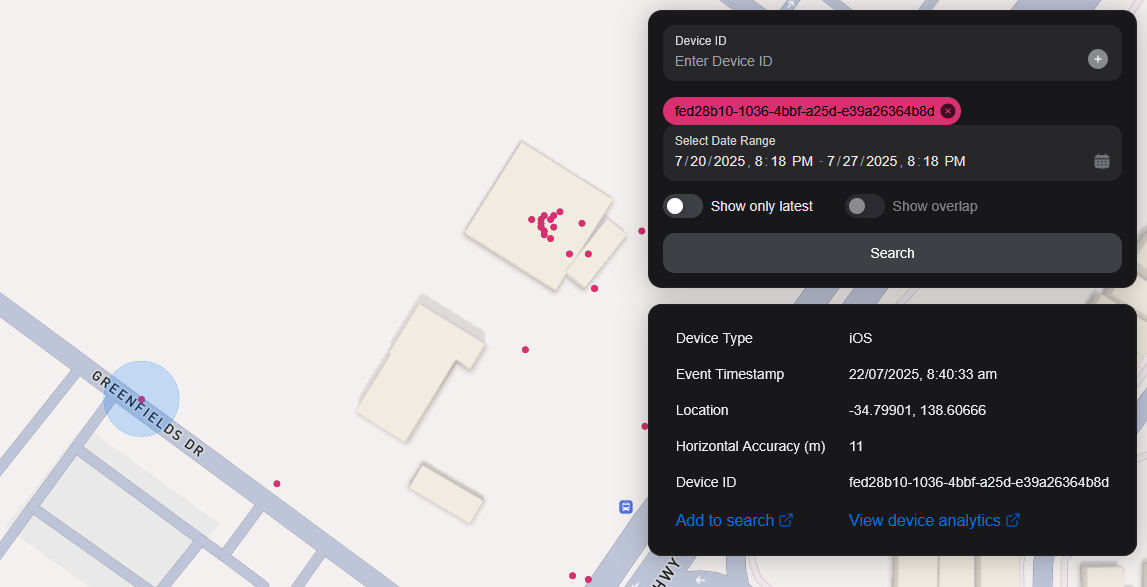
You can search the map by specifying multiple Device IDs in the top right hand filter. Each time you enter a Device ID it will be assigned a unique colour. This colour is persistent. Note: if you have a geobox defined, it'll only query inside that.
<br />
Buscar por Geobox
Puedes buscar uno o más geoboxes para revelar dispositivos en esas cajas.
Dibujando
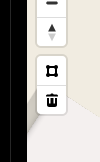
You can draw these boxes (polygons) by clicking the square above the bin on the left menu.
<br />
This will allow you to click points on the map to draw a polygon shape. To finish drawing this shape, click the first point and the box will turn light blue.
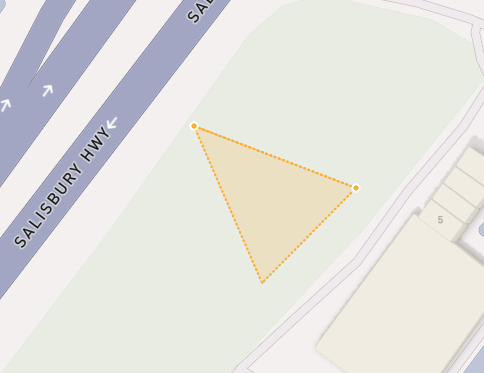
 <small><i>Partially finished shape</i></small>
<br />
<br />
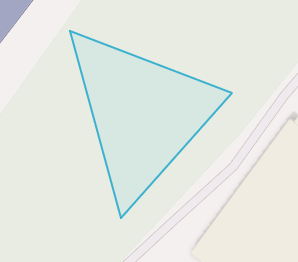
 <small><i>Finished shape</i></small>
<br />
<br />
A polygon can be in whatever shape you desire, for example, you can draw complex shapes around a place of interest for high accuracy.
To remove a polygon off the map, click it and then click the bin icon.
Eliminando
Para eliminar un Geobox puedes hacer clic en él, así que está resaltada naranja y haz clic en el icono de la papelera en el menú de la izquierda.
Show only latest
When you click Show only latest only the latest event per device in the query area is shown.
Mostrar overlap
When you draw two or more geoboxes, the Show Overlap switch will enable. When this is clicked, the results will only show devices present in each of the geoboxes.
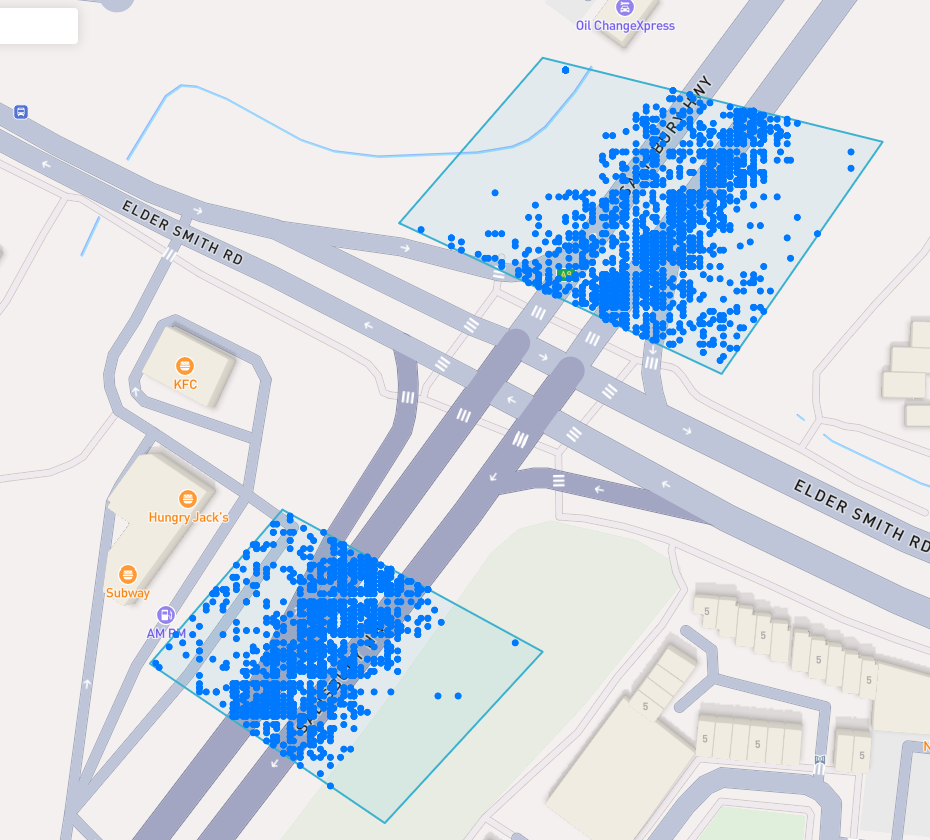
 <small><i>Overlapped Results</i></small>
<br />
<br />
Interperting Results
Each event contains information, such as Lat/Lon, Event Time, Horizontal Accuracy, IP Addresses (v4/v6). This event context is shown on the right pane, when you click on an individual device. In addition, an event's horizontal accuracy is shown as a light blue circle around the event.
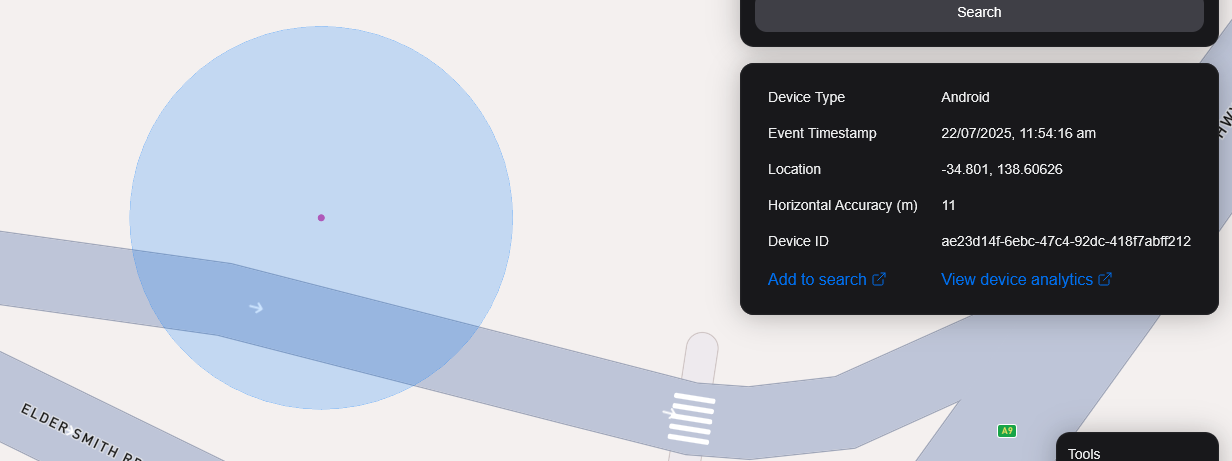
 <small><i>Horizontal Accuracy and Event Context</i></small>
<br />
<br />
Exportar resultados
You can export results from the map by clicking the Export Results button under the Search button. This will export a .csv file containing all the results with the following headers: Device ID,Device Type, Event Time, Latitude, Longitude, IP Address (v4), IP Address (v6).
Vista satelital
Actualmente no soportamos la vista de Satellite en el mapa, sin embargo, está en nuestro mapa de ruta para apoyar la imagen de satélite Sentiel-2 en tiempo real.
También tenemos previsto lanzar una función que permita a nuestros usuarios realizar tareas satelitales para recoger imágenes sobre un área de destino.