
Basic Queries
The following guide shows you how to harness the Geopulse Map feature to find devices.
You must filter the start and end times for any query to be valid.
A blue point plotted on the map signifies an device event, you can click the event for more information.
Find a Place of Interest
To navigate the map to a specific address, search it in the top left. An autocompelete prompt will pop up, once an address is clicked, the map will navigate there.
Search By Device ID
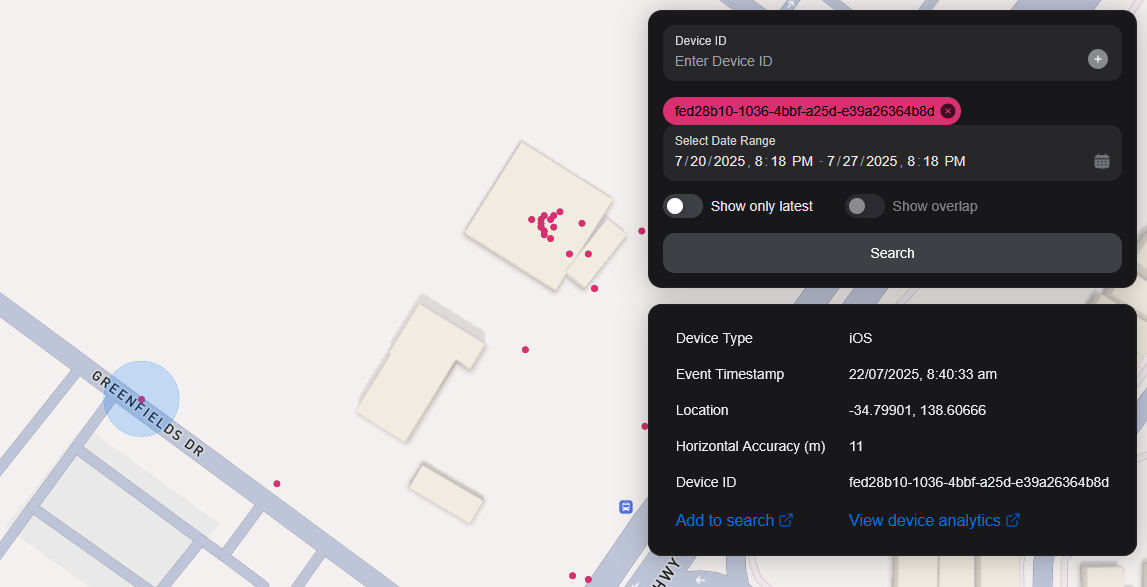
You can search the map by specifying multiple Device IDs in the top right hand filter. Each time you enter a Device ID it will be assigned a unique colour. This colour is persistent. Note: if you have a geobox defined, it'll only query inside that.
Search By Geobox
You can search one or more geoboxes to reveal devices in those boxes.
Drawing
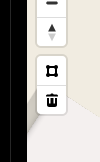
You can draw these boxes (polygons) by clicking the square above the bin on the left menu.
This will allow you to click points on the map to draw a polygon shape. To finish drawing this shape, click the first point and the box will turn light blue.
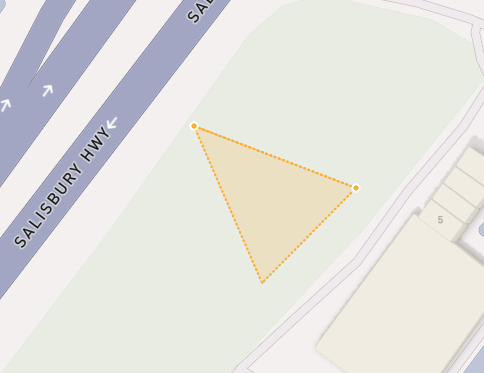 Partially finished shape
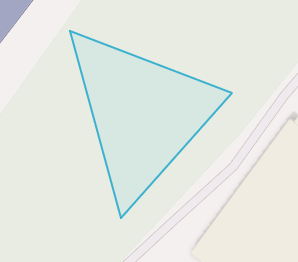 Finished shape
To remove a polygon off the map, click it and then click the bin icon.
Removing
To remove a Geobox you can click on it, so it's highlighted orange and click the bin icon on the left menu.
Show only latest
When you click Show only latest only the latest event per device in the query area is shown.
Show Overlap
When you draw two or more geoboxes, the Show Overlap switch will enable. When this is clicked, the results will only show devices present in each of the geoboxes.
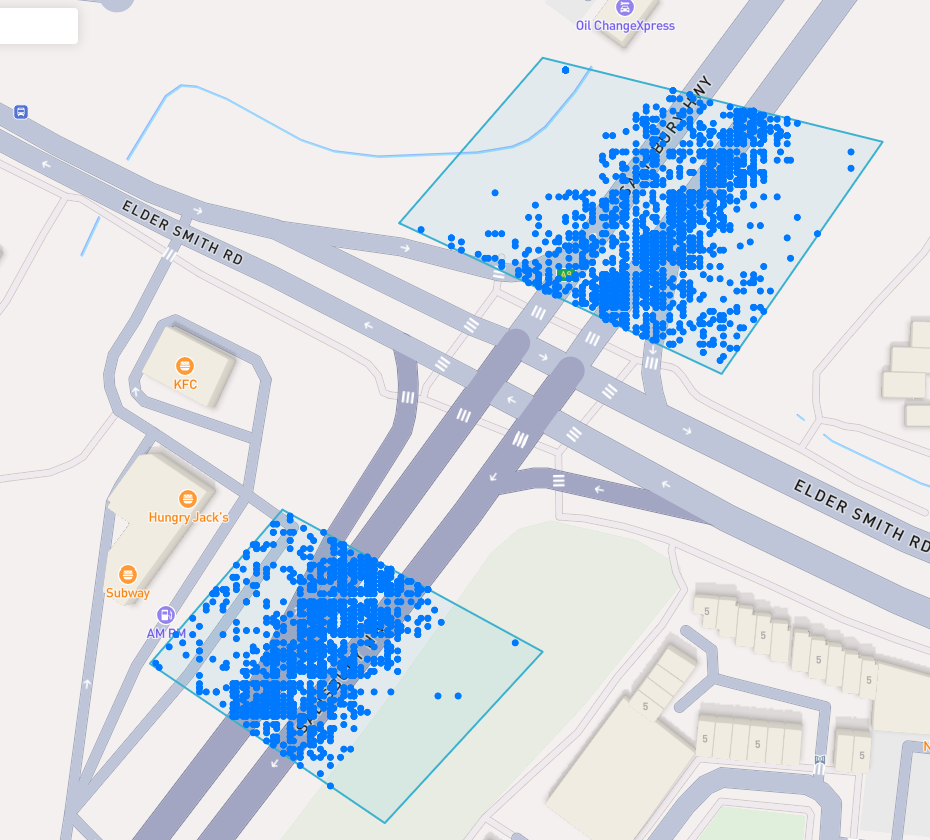 Overlapped Results
Interperting Results
Each event contains information, such as Lat/Lon, Event Time, Horizontal Accuracy, IP Addresses (v4/v6). This event context is shown on the right pane, when you click on an individual device. In addition, an event's horizontal accuracy is shown as a light blue circle around the event.
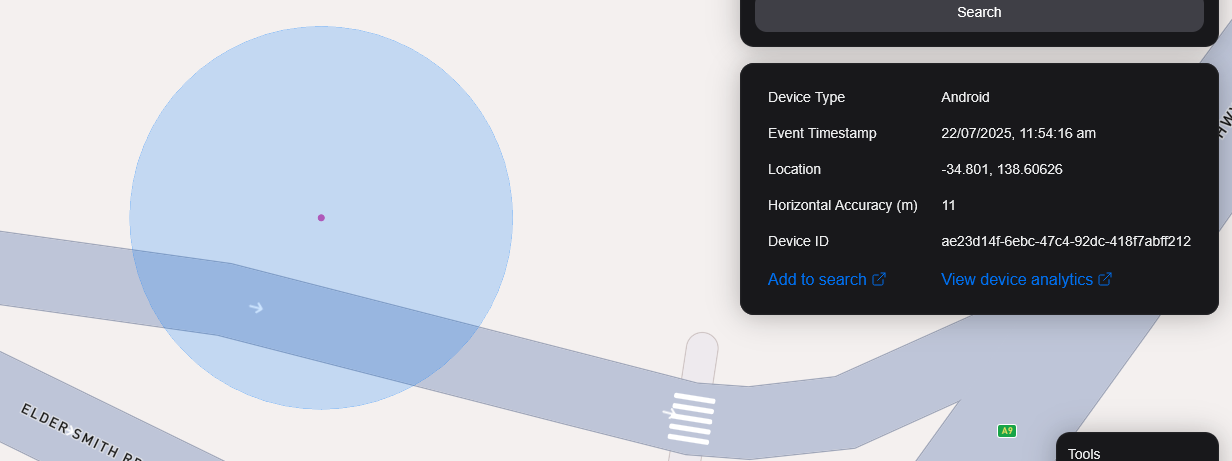 Horizontal Accuracy and Event Context
Export Results
You can export results from the map by clicking the Export Results button under the Search button. This will export a .csv file containing all the results with the following headers: Device ID,Device Type, Event Time, Latitude, Longitude, IP Address (v4), IP Address (v6).
Satellite View
We currently don't support Satellite view in the map, however, it is in our roadmap to support the Sentiel-2 near-realtime satellite imagery.
We also plan to release a feature to allow our users to task satellites to collect images over a target area.