
Requêtes basiques
Le guide suivant vous montre comment exploiter la fonctionnalité de la carte Geopulse pour trouver des périphériques.
Vous devez filtrer les heures de début et de fin pour que toute requête soit valide.
A blue point plotted on the map signifies an device event, you can click the event for more information.
Trouver un Lieu d'intérêt
To navigate the map to a specific address, search it in the top left. An autocompelete prompt will pop up, once an address is clicked, the map will navigate there.
Recherche par ID de périphérique
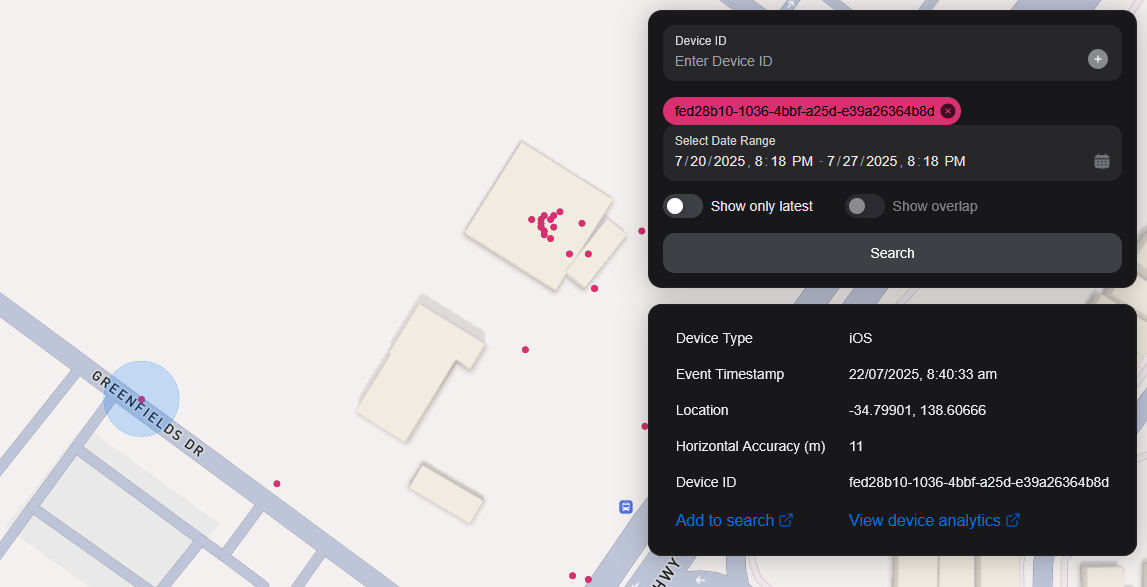
You can search the map by specifying multiple Device IDs in the top right hand filter. Each time you enter a Device ID it will be assigned a unique colour. This colour is persistent. Note: if you have a geobox defined, it'll only query inside that.
<br />
Recherche par Geobox
Vous pouvez rechercher un ou plusieurs géoboxes pour révéler des appareils dans ces boîtes.
Dessin
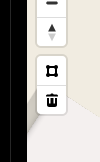
You can draw these boxes (polygons) by clicking the square above the bin on the left menu.
<br />
This will allow you to click points on the map to draw a polygon shape. To finish drawing this shape, click the first point and the box will turn light blue.
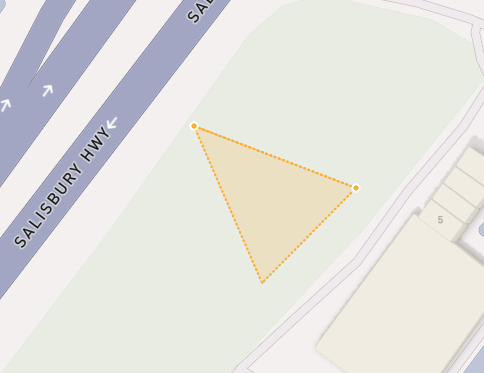
 <small><i>Partially finished shape</i></small>
<br />
<br />
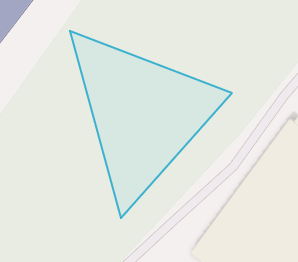
 <small><i>Finished shape</i></small>
<br />
<br />
A polygon can be in whatever shape you desire, for example, you can draw complex shapes around a place of interest for high accuracy.
To remove a polygon off the map, click it and then click the bin icon.
Enlèvement
Pour supprimer un Geobox vous pouvez cliquer dessus, il est surligné en orange et cliquez sur l'icône de la corbeille dans le menu de gauche.
Show only latest
When you click Show only latest only the latest event per device in the query area is shown.
Afficher les chevauchements
When you draw two or more geoboxes, the Show Overlap switch will enable. When this is clicked, the results will only show devices present in each of the geoboxes.
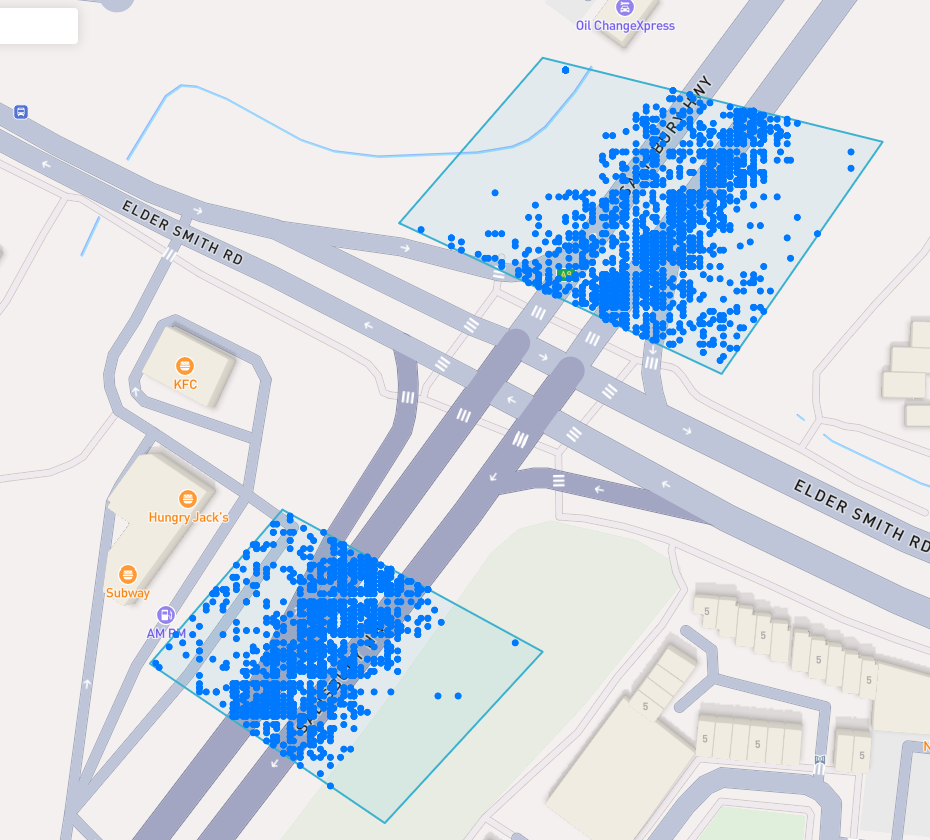
 <small><i>Overlapped Results</i></small>
<br />
<br />
Interperting Results
Each event contains information, such as Lat/Lon, Event Time, Horizontal Accuracy, IP Addresses (v4/v6). This event context is shown on the right pane, when you click on an individual device. In addition, an event's horizontal accuracy is shown as a light blue circle around the event.
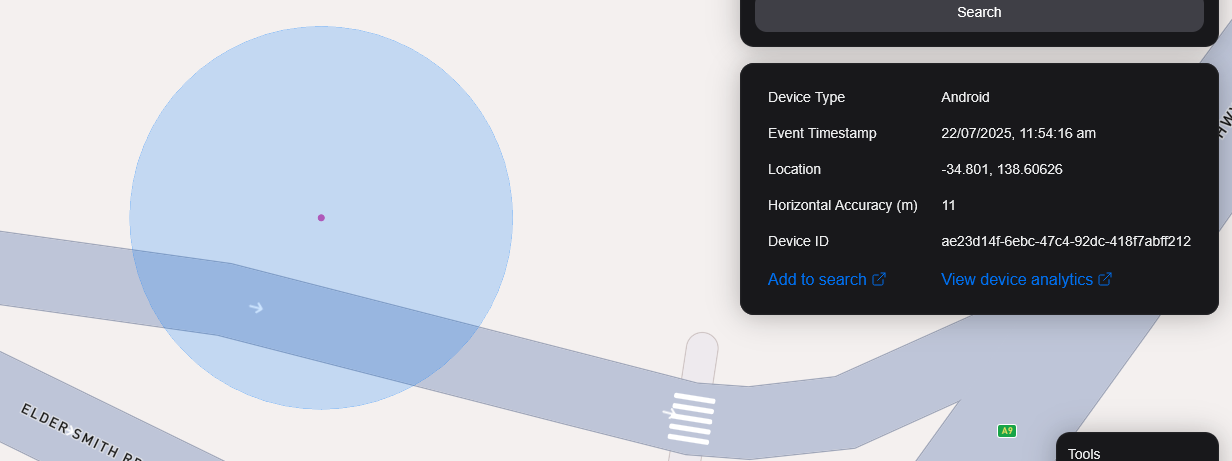
 <small><i>Horizontal Accuracy and Event Context</i></small>
<br />
<br />
Résultats d'exportation
You can export results from the map by clicking the Export Results button under the Search button. This will export a .csv file containing all the results with the following headers: Device ID,Device Type, Event Time, Latitude, Longitude, IP Address (v4), IP Address (v6).
Vue satellite
Actuellement, nous ne supportons pas la vue satellite dans la carte, cependant, il est dans notre feuille de route de prendre en charge l'imagerie Sentiel-2 quasi temps réel.
Nous prévoyons également de publier une fonctionnalité permettant à nos utilisateurs de réaliser des tâches de satellites pour collecter des images sur une zone cible.