
Basis zoekopdrachten
De volgende handleiding laat zien hoe je de functie van de Geopulse kaart kunt gebruiken om apparaten te vinden.
U moet de start- en eindtijden filteren om een query geldig te maken.
A blue point plotted on the map signifies an device event, you can click the event for more information.
Vind een interessante plaats
To navigate the map to a specific address, search it in the top left. An autocompelete prompt will pop up, once an address is clicked, the map will navigate there.
Zoeken op Device ID
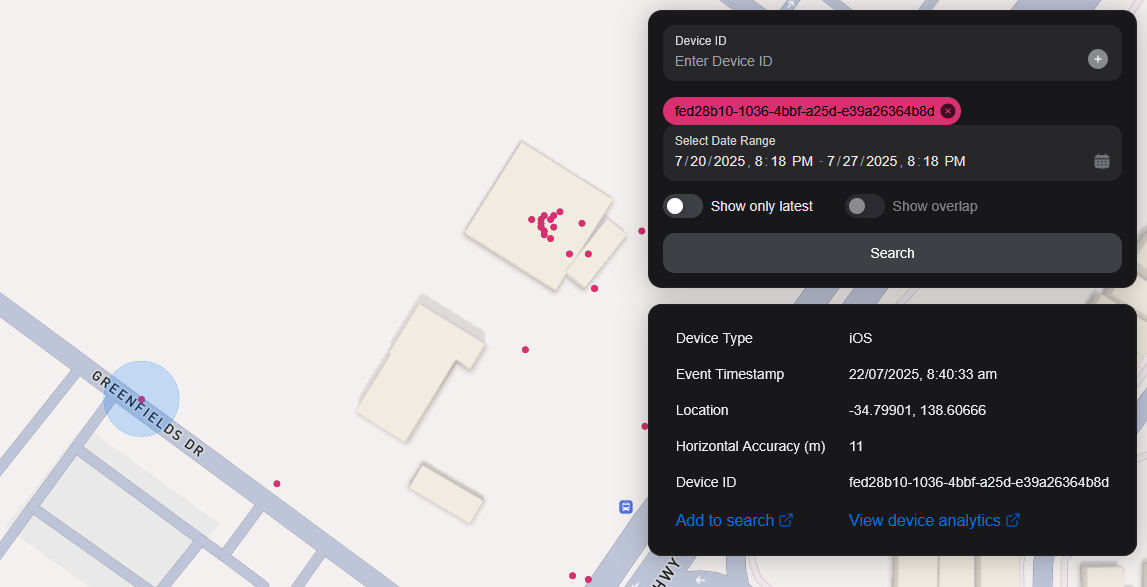
You can search the map by specifying multiple Device IDs in the top right hand filter. Each time you enter a Device ID it will be assigned a unique colour. This colour is persistent. Note: if you have a geobox defined, it'll only query inside that.
<br />
Zoeken op Geobox
Je kunt op één of meer geoboxen zoeken om apparaten in deze vakken te onthullen.
Tekenen
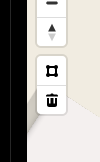
You can draw these boxes (polygons) by clicking the square above the bin on the left menu.
<br />
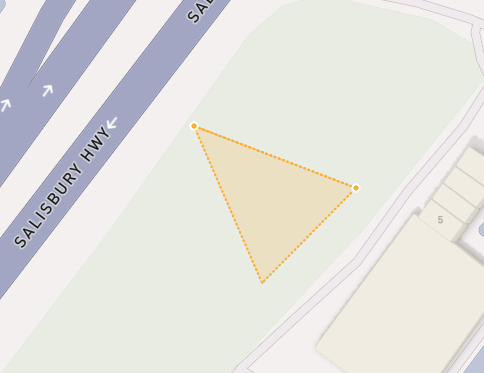
This will allow you to click points on the map to draw a polygon shape. To finish drawing this shape, click the first point and the box will turn light blue.
 <small><i>Partially finished shape</i></small>
<br />
<br />
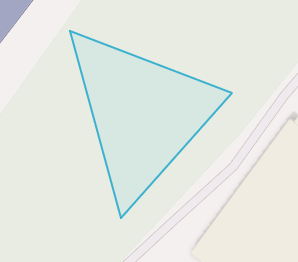
 <small><i>Finished shape</i></small>
<br />
<br />
A polygon can be in whatever shape you desire, for example, you can draw complex shapes around a place of interest for high accuracy.
To remove a polygon off the map, click it and then click the bin icon.
Verwijderen
Om een Geobox te verwijderen, klik je erop en klik je op het oranje icoon in de prullenbak.
Show only latest
When you click Show only latest only the latest event per device in the query area is shown.
Overlap weergeven
When you draw two or more geoboxes, the Show Overlap switch will enable. When this is clicked, the results will only show devices present in each of the geoboxes.
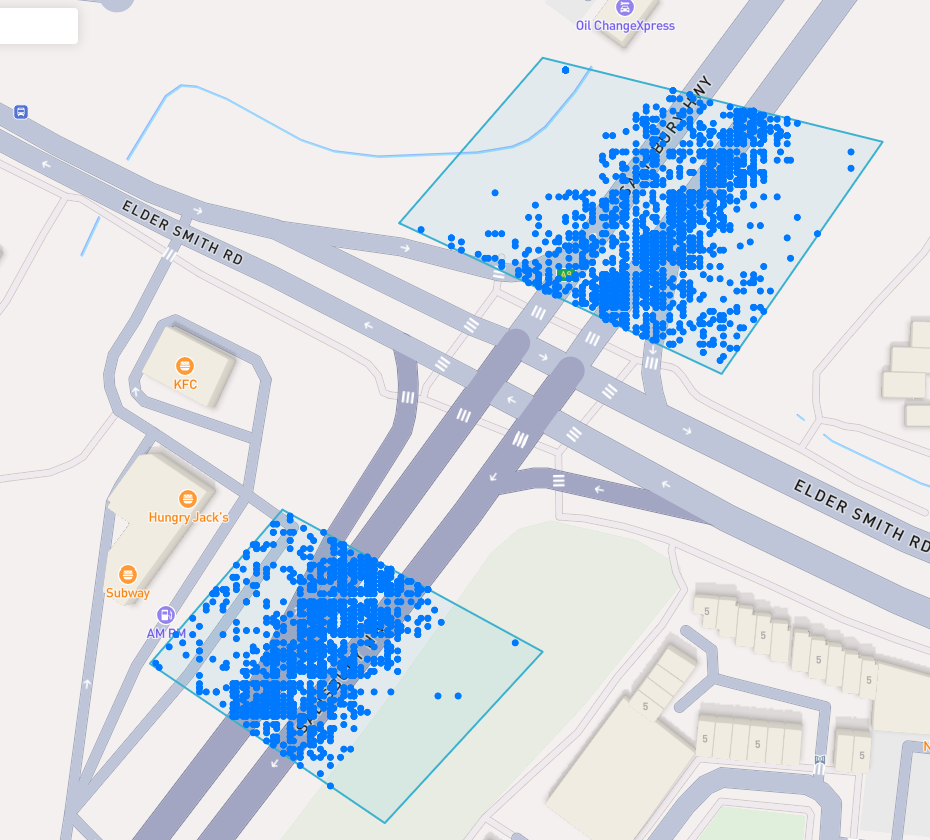
 <small><i>Overlapped Results</i></small>
<br />
<br />
Interperting Results
Each event contains information, such as Lat/Lon, Event Time, Horizontal Accuracy, IP Addresses (v4/v6). This event context is shown on the right pane, when you click on an individual device. In addition, an event's horizontal accuracy is shown as a light blue circle around the event.
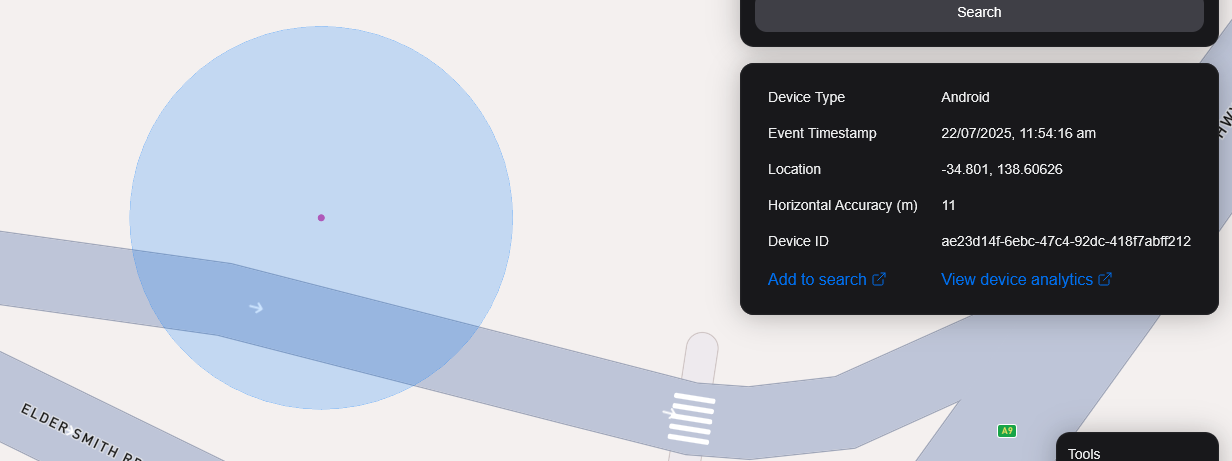
 <small><i>Horizontal Accuracy and Event Context</i></small>
<br />
<br />
Resultaten exporteren
You can export results from the map by clicking the Export Results button under the Search button. This will export a .csv file containing all the results with the following headers: Device ID,Device Type, Event Time, Latitude, Longitude, IP Address (v4), IP Address (v6).
Satelliet Weergave
Op dit moment steunen we Satellietweergave niet in de kaart, maar op onze roadmap staan we wel achter het satellietbeeld Sentiel-2.
We zijn ook van plan om een functie vrij te geven zodat onze gebruikers satellieten afbeeldingen kunnen verzamelen over een doelgebied.